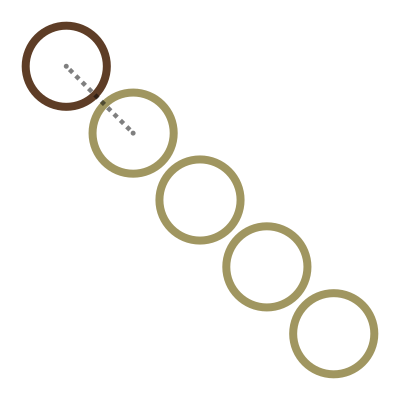
If you ask most CAD users how to create a row of fence posts or a line of evenly spaced bolts, they will likely point you toward the ARRAY command. It makes sense. It is in the name. In modern AutoCAD, the Array command creates a complex, associative object that allows you to tweak spacing later.
But sometimes, you do not want a complex object. Sometimes, you just want ten copies of a block in a straight line, and you want them now. You do not want to open a dialog box. You do not want to navigate a Ribbon tab. You certainly do not want to have to "Explode" an array object later just to edit one specific item.
This is where the Old School method shines. Did you know the standard COPY command has a built-in Array function? It is right there in the command line, hiding in plain sight.
How to Unleash the Copy Array
The next time you run the COPY command (or CO /
CP if you have your aliases set up correctly), watch the command
line prompt after you pick your base point.
The sequence goes like this:
- Select your object.
- Type
COPY. - Pick your Base Point.
- STOP. Do not click your second point yet.
Look at the command line. You will see a prompt that says:
Specify second point or [Array] <use first point as
    displacement>:
Type A and hit Enter.
Now, AutoCAD asks you for the Number of items to array. Note that this number includes your original object. So, if you have one fence post and you need nine more, you type 10.
Two Ways to Control the Spacing
Once you have entered the number of items, you have two distinct ways to place them. This is where the magic happens.
1. The "Second Point" Method (Default)
This acts exactly like a normal Copy operation, but it repeats the distance. If you move your cursor 5 units to the right, AutoCAD will place the second item 5 units away, the third item 10 units away, the fourth item 15 units away, and so on.
Use this when: You know exactly how far apart the items need to be (e.g., "I need columns spaced exactly 12 feet apart").
2. The "Fit" Method
This is the option people miss. After you type A and enter your
number of items, look at the command line again. You will see an option for
[Fit].
Type F and hit Enter.
Now, your cursor controls the position of the very last item in the set. AutoCAD will automatically calculate the math and squeeze the other copies evenly between your start point and your cursor.
Use this when: You know the start and end points, but you do not want to do the math on the spacing (e.g., "I need 5 balusters to fit exactly between these two posts, whatever that distance is").
Why Use This Over the Array Command?
I use this method constantly. It creates individual, independent objects rather than a "Block-like" Array group. It is faster than opening a menu. It keeps your hands on the keyboard and your eyes on the geometry.
It is just another example of why reading the Command Line prompts is the most powerful skill a CAD Wizard can possess.
No comments:
Post a Comment
Welcome to the circle! If you have a question about a specific command, variable, or LISP routine, please include the version of AutoCAD or the slicer software you are using. I check all comments to keep the spam bots out of the tower, so your message will appear once approved.