The Yin and Yang of CAD Editing
There are two commands in AutoCAD that account for a massive percentage of your drafting time. They are the chisel and the hammer of the digital drafter. I am talking, of course, about TRIM and EXTEND.
Most novices treat these as two separate tools. They type TR to
cut a line. Then they hit Escape. Then they type EX to lengthen a
line. Then they hit Escape again. To a Sorcerer, this is wasted motion. It is
a break in the flow.
The truth is that TRIM and EXTEND are not two commands. They are two sides of the same coin. If you master the hidden toggles and selection methods, you never have to leave one to use the other.
The Shift Key Toggle
This is the single most important shortcut for geometry editing. If you take nothing else away from this blog, take this.
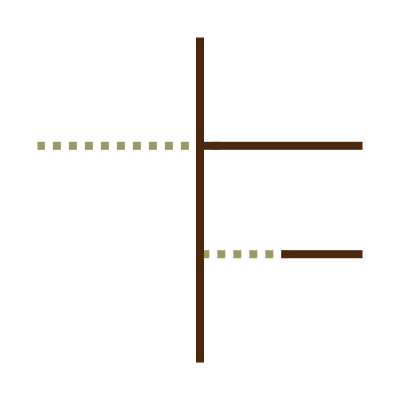
When you are in the TRIM command, holding down the SHIFT key turns it into EXTEND.
When you are in the EXTEND command, holding down the SHIFT key turns it into TRIM.
It is that simple. I typically sit in the TRIM command by
default. I select my cutting edges (or hit Enter to select all), and I start
cutting away the excess linework. Suddenly, I see a line that falls short of
the wall. I do not cancel the command. I simply hold down
Shift, click the line to shoot it forward to the boundary,
release Shift, and keep trimming.
This turns a "stop-and-go" process into a fluid, continuous stream of editing.
The Implied Fence: slashing Through the Noise
Old School users remember typing F for "Fence" to draw a
multi-segment line that trimmed everything it touched. In modern AutoCAD
(specifically the "Quick Mode" introduced a few years ago), this behavior is
now implied.
You do not need to click individual lines one by one. That is tedious. Instead, click in an empty space and drag your cursor across the objects you want to modify. It creates a "path" or a sketch line. Anything this path crosses gets trimmed (or extended if you are holding Shift).
It acts like a sword slash. If you have twenty parallel lines that need to end at a specific vertical line, do not click twenty times. Click once, drag a path through all twenty ends, and watch them disappear in unison.
Trimming as an Eraser
There is a specific behavior in the TRIM command that often
confuses new users, but it is a powerful feature for cleaning up drawings.
Traditionally, you can only trim an object if it intersects a cutting edge. However, the modern iteration of the command is smarter. If you select an object to trim, and that object does not touch a cutting edge or boundary, AutoCAD assumes you want it gone entirely.
It treats the "Trim" action as an "Erase" action. This is incredibly useful
when cleaning up messy imported drawings. You can slash through loose,
floating geometry that isn't connected to anything, and AutoCAD will simply
wipe it out. You do not need to switch tools to ERASE or
DELETE. Just keep the trim command active and clean the slate.
Blocks are Boundaries Too
Finally, do not forget that Blocks and Xrefs are valid boundaries.
You do not need to draw a temporary line over the edge of a complex block just
to trim against it. If you need to extend a line to the edge of a chair symbol
or a complex mechanical assembly, the EXTEND command recognizes
the linework inside that block as a valid wall.
This applies even if the block is on a locked layer (though you cannot trim the block itself, obviously). Use the geometry that is already there. Let the complex objects do the work for you.
Conclusion
Stop treating TRIM and EXTEND as separate entities. They are the left and right hands of the same body. Keep your left hand on the Shift key, keep your right hand on the mouse, and stop hitting Escape.
No comments:
Post a Comment
Welcome to the circle! If you have a question about a specific command, variable, or LISP routine, please include the version of AutoCAD or the slicer software you are using. I check all comments to keep the spam bots out of the tower, so your message will appear once approved.